Category Archives: CalendarScripts

Shareable Final Screen URL in WatuPRO

From version 3.8.8 WatuPRO supports a shareable URL of the “Final screen”. This is the screen that is shown to the user when they complete the quiz – the actual quiz results.

From version 3.8.8 you can optionally enable public URL that the user can share with friends and on social networks.

How To Do It

Just above the “Final screen” text box there is a checkbox saying “Enable individual shareable URL of the final screen”. If you check it, the URL will be enable but nothing will change to the end user by default. You need either to use the variable shown under the checkbox to display the link on their final screen, or automatically redirect to it.

Why Redirect To The URL?

Redirecting to the final screen URL can be very useful for several reasons:

  • Tech-savvy users can copy it and place it on their blog or social networks themselves
  • All social-sharing plugins that you have installed should automatically work and share this individual URL. This way just any user can share their quiz results and bring more traffic to your site.
  • By default WatuPro loads the quiz results by AJAX. This is very fancy and on long quizzes you see that nice animation effect. However it has a downside – some complex scrips will not work inside AJAX-called blocks. So some users were unable to use some contact form plugins or other sharing plugins on the quiz results page. Now with the automatic redirection this problem no more exists.

Remember, the setting is entirely optional. If you don’t want the quiz results of any user to be public, just don’t enable the shareable URL.

Also pay attention what shortcodes you are using in the final screen / quiz results page. If you are using shortcodes to greet the logged in user by name (let’s call him Joe), the page may look odd to a non-logged in guest when looking at Joe’s results.
WatuPRO: Answer Feedback Elaboration

From version 3.8.7 we are introducing a powerful feature to elaborate your “optional answer explanation / feedback” that can be given to each question. Just click on “Elaborate answer feedback” checkbox which is right under the text box. You will be presented two option – 1. to show different feedback if the question is answered correctly or incorrectly and 2. to show different explanation for every single selected answer. Let me explain by examples and screenshots:

Elaborate Feedback Based on Correct / Incorrect Answer:

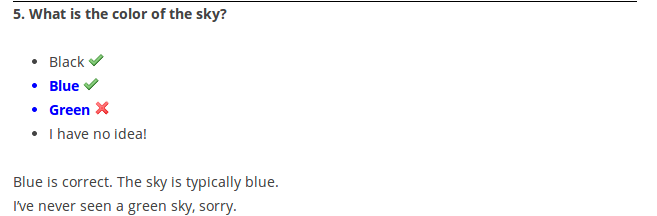
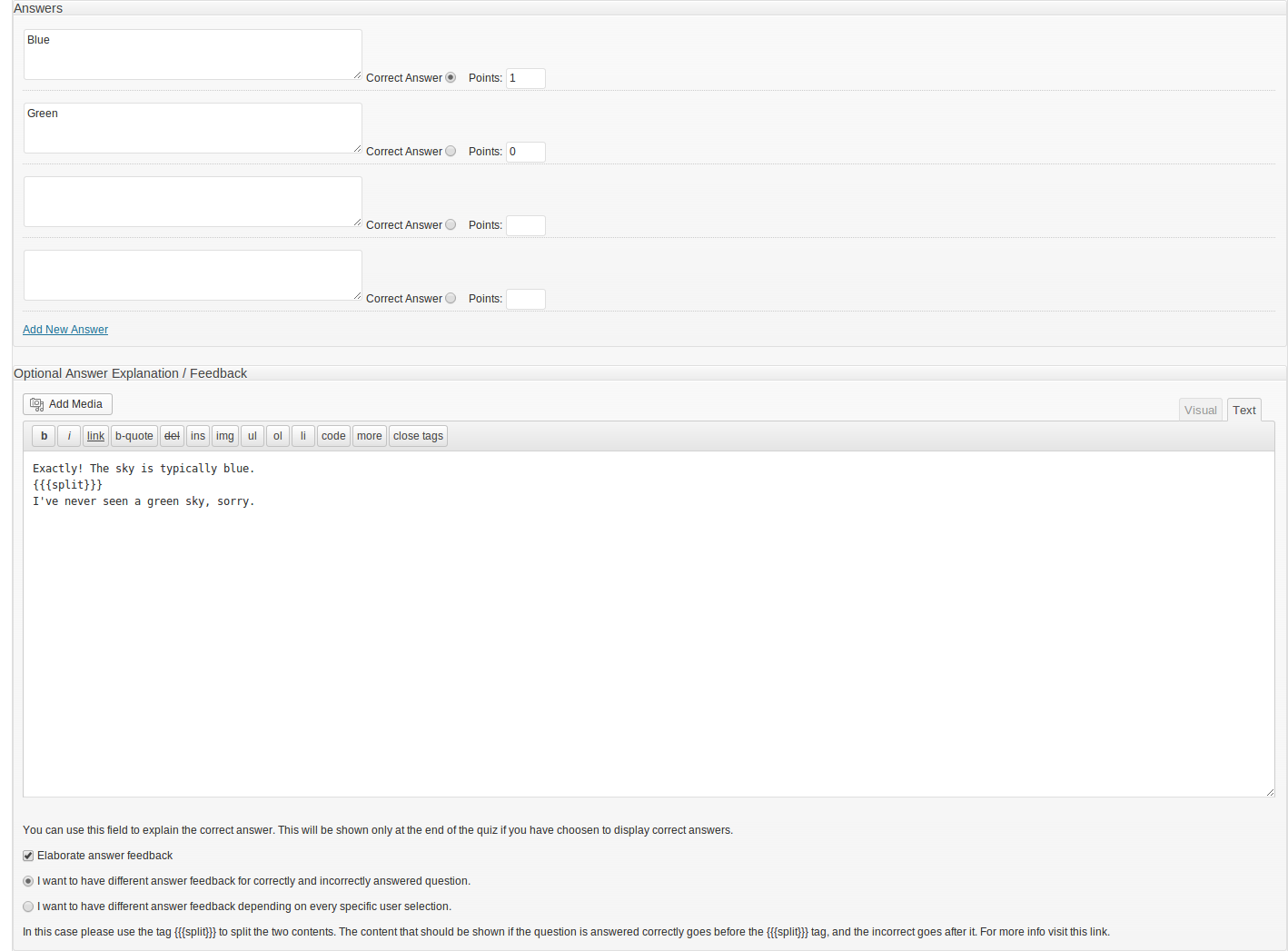
Let’s suppose you have a question “What is the color of the sky” and want to elaborate in different ways depending on the user answer. This will be a single-selection question which has one correct and one wrong answer:

boolean


In this case just use the {{{split}}} tag to split between both. The text which is before the split text will be shown always when the answer is correct. It doesn’t matter how you have arranged your answers and how many correct or incorrect choices you have given to the user.

The text given below (after) the {{{split}}} tag will be shown always when the answer is wrong. That’s it. You can very well skip one of the sides to have answer feedback displayed only when the question is correctly or wrongly answered.

Elaborate Feedback Based on Specific User Answer:

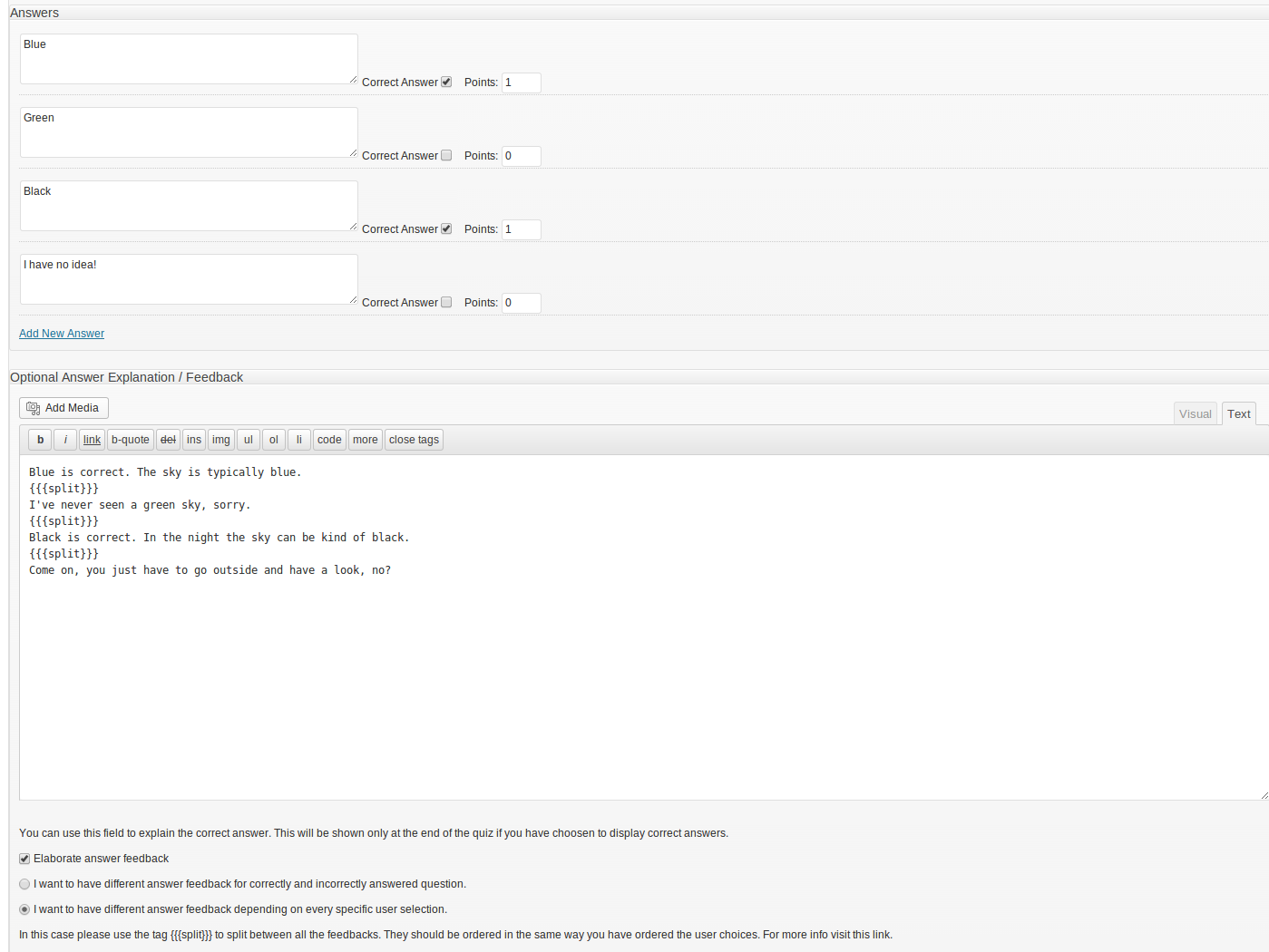
Sometimes you may want to display different message for every possible selection that user makes. Let’s again use the question “What is the color of the sky” but this time we will add more options. And we’ll make it multiple-select question:

exact


In this case use the {{{split}} tag to break between your feedbacks/explanations. The order of explanations must match the order of the answers you have given. It doesn’t matter whether you’ll randomize the questions when showing them to the user. Just make them match when you create the question. See the screenshot above (click on it to see it larger) and notice how the different texts match the answers. First answer is Blue and the first text is about Blue. Then it’s Green and the text is about green. And so on.

See how it will look when the quiz is submitted:

result

Mozilla Open Badges Support in Watu Pro Play Plugin

Finally, it’s here. Version 1.7 of the Play Plugin for Watu PRO is just uploaded.

Open Badges Support

The most important new feature is Mozilla Open Badges support. How does it work? Really simple:

  • Check “Issue as Mozilla Open Badge” checkbox when you add or edit your badge.
  • Make sure you fill your Issuer organization settings (the link is given right under the checkbox
  • Enter badge graphic URL. It must be a .png graphic. If you want to upload a file, just use the Add Media button right above the large box for “Badge Content or Graphic” which is above the checkbox. Then copy the URL from the uploaded graphic
  • Enter badge criteria URL. It’s required by open badge specification. This can be a page that explains when the badge is assigned.
  • That’s it. If you are sending mail when user receives a badge (this setting is available in the Manage Badges page), you will be able to use the new {{open-badges-url}} to give a link for accepting the badge.
  • Another new feature – user overview page – will let your users add their badges from their overview page. Read more about it below.

User Overview Page

This is a new page that shows up in the user dashboard under “My Exams” menu. However it is optional, so you need to enable it from the WatuPRO Play main page. At the bottom there is a checkbox to activate user overview page.

We have added a basic default design for this page, but you are free to design it yourself using the available shortcodes.

User Rewards Shortcode

Speaking about new shortcodes, in 1.7 we have added [watuproplay-userrewards] shortcode to display the current user redeemed rewards. When used as [watuproplay-userrewards x]  the shortcode can show rewards of any specified user. Insead of x enter the user ID.

If you have other desired features for the Play plugin, please share in the comments!