Category Archives: CalendarScripts

Namaste! LMS to WatuPRO Play Bridge

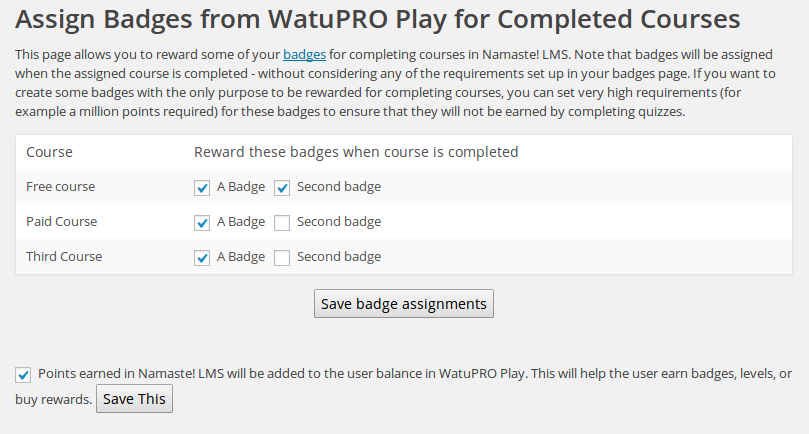
This is a tiny bridge for customers who use both Namaste! LMS and the WatuPRO Play plugin. It lets you do two things:

  • Assign badges from WatuPRO play for completing courses in Namaste! LMS. These badges will be assigned without considering the badge requirements. if you want badges which will be assigned for completing courses but cannot be assigned through taking quizzes, simply assign very high requirements (for example a million points or over 100% correct answers) so the badge can never be earned from WatuPRO but only from Namaste
  • You can also transfer the points earned in Namaste (if using the Namaste points system) to the user’s balance in WatuPRO Play. Then they can use these points to earn levels, badges, or redeem rewards.

Download the plugin here

namplay


Collect User Contact Information With WatuPRO

Note: From version 4.4.3 to version 4.4.4.5 there is a small bug in the Advanced Settings page (Intelligence module). When you save the advanced settings it will remove the contact info feature settings. If you are running any of these versions please let us know to send you update. Update will anyway be sent to everyone when we release version 4.5 so there is nothing to hurry about unless you use the Advanced Settings page and have a version between 4.4.3 and 4.4.4.5.

From version 4.4.3 the quiz plugin WatuPRO has an easier way to collect the following information from every quiz taker:

  • User email
  • Name
  • Company name
  • Phone

The best thing is that you can easily set this to happen before or after taking the quiz. Here is how the new setting looks in the Add / Edit Quiz page under “User and Email Related Settings”:
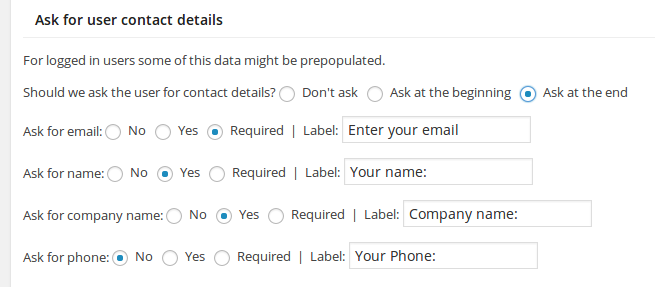
ask-for-contacts

That’s it. The software will figure out how to display this depending on your quiz settings.

And more, for logged in users it will automatically prepopulate email and name. This is what you call easy.

Thus collected information will be visible to you in the quiz results page.

Moreover, if you have selected to email the user their results, the quiz will use the information from these fields and no longer open “Enter email” field on top of the page. (The field will still appear if you don’t select “Ask for email” but select “Email user their results”). So every possible situation is covered.

Other and older (more complicated) methods:

The older methods of obtaining user contact information still exist and you can still use them:

  • Request contact information with open-end “survey” type questions
  • Request user and email with your own tags like explained here.

While both methods will keep working, we strongly recommend you to start using the new option. It is really much simpler for you.

How To Integrate Arigato PRO with Contact Form 7

From version 2.2.4 our premium newletter and auto-responder WordPress plugin Arigato PRO has a built-in integration with Contact Form 7. This is the most popular contact form for WordPress so we decided to simply build the integration inside our software instead of creating additional plugins.

What Does It Integrate?

The integration allows you to use your existing contact forms also as subscribe form for the autoresponder. This way you can have users who ask you questions also subscribe to your newsletter or marketing campaign. Don’t worry, it’s not automated – the user will be given a checkbox for the mailing list(s) you want to offer them. You can even include custom fields from the mailing list into the contact form:

contact-form

How To Do It?

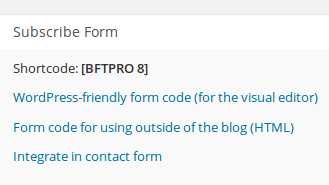
1. Go to your “Mailing lists” page. You will see a link “Integrate in contact form” in the “Subscribe form” column of the table:

integrate-link

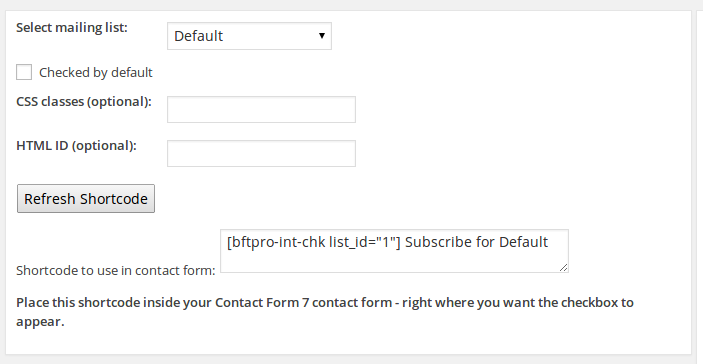
2. Click on it and you’ll be taken to a page that gives you two things:
a) Shortcode for the checkbox. You can make it checked by default, and optionally assign CSS class and HTML ID. The text next to the checkbox defaults to “Subscribe for {list-name}”:list-shortcode

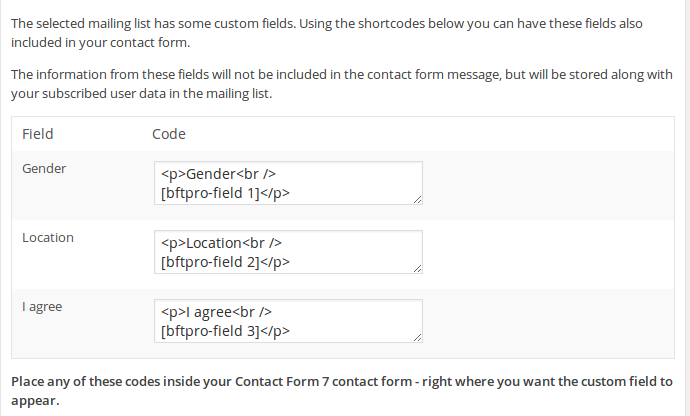
b) The right side of the page will show you all custom fields in the list if there are any. You can also get shortcode for each of these fields:

custom-fields

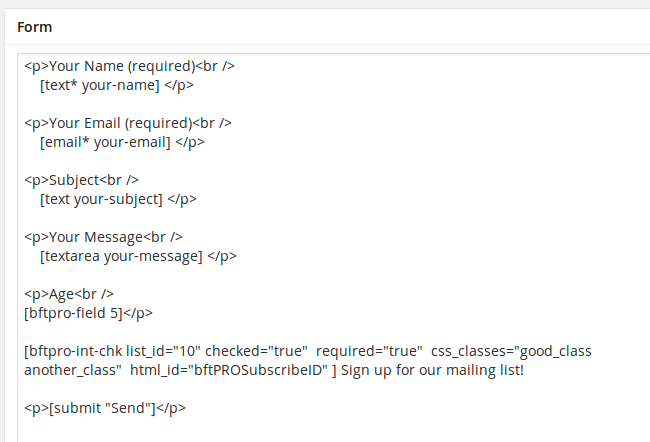
3) Any of these custom fields along with the “subscribe” checkbox shortcode can then be placed inside your Contact Form 7 contact form. Go to “Contact” in your WordPress admin menu (obviously the plugin Contact Form 7 must be installed and activated) and click to edit the contact form. Then place the shortcodes from BroadFast anywhere you want them to appear:

place-shortcodes

4. That’s it. Now your contact form will also act as subscribe form for your mailing list(s).

Note the following:

  • You can include checkboxes for more than one mailing list
  • The user’s email will be auto-confirmed if the mailing list does not require double opt-in confirmation. If the list requires confirmation, a confirmation email will be sent – just like with a regular subscribe form.
  • The information from custom fields that are included in the contact form will not come to your Contact form 7 email but will be recorded along with the user’s data and visible in your subscriber’s data.
  • From version 2.7.1 of Arigato PRO you can include the [bftpro-int-chk list_id=”…”] shortcode of each list inside your Contact form 7  message. This way you’ll get yes/no confirmation showing if the user has checked that list. Especially useful if you allow the user to subscribe for multiple mailing lists.