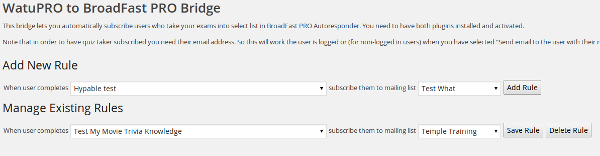
From version 4.1.8, in addition to DocRaptor, WatuPRO supports free PDF generation via the PDF Bridge plugin. It uses the MPDF library and is capable to parse rather complicated designs and texts different languages.
(Now also available for Namaste! LMS)
Download The PDF Bridge Here (version 2.0.3, 47 MB – for PHP 8+)
Download The New PDF Bridge Here (version 1.9, 8 MB – for PHP 7.3+)
Older PHP version users can still use version 1.4.3. See also the note about fonts at the bottom of this page.
If you have problems with broken fonts in the PDF see below.
Note: this file is big and uploading through your WP Admin -> Plugins page may not work. In such case you need to upload the unzipped folder by FTP or upload the zip from your hosting control panel account.
Install the plugin and activate it. Then in your Certificates page, under the certificates you’ll see options to generate PDFs either through DocRaptor or the free plugin. That’s all you need to set up.
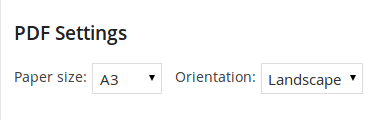
From PDF Bridge version 0.4 and WatuPRO version 4.6.2.1 and above you can also set up page size and orientation in the Add / Edit Certificate page:
From version 1.0 the bridge also supports placing a background image.
In Namaste! LMS these options will appear if you have installed PDF Bridge version 0.7 or newer.
Troubleshooting
- Images do not appear in certificates or you are getting an Image not found error. Almost always this is a problem with DNS configuration on your server: it does not resolve correctly to localhost. You have two options:
a) Upload your image on a different domain and link to it.
b) Contact your hosting support or server admin to fix the DNS misconfiguration. More information about this can be found here.It’s also possible that there is a permissions issue with your server configuration: many webmasters or server admins make wp-content folder not accessible for scripts and MPDF can’t fetch the images from it. In such cases you should either remove the limitation (usually from your .htaccess file) or copy the images to the root of your site and change the paths in the certificate.
From your main Settings page, PDF Bridge menu link you can switch off and on showing image errors. - Other design issues. MPDF library is capable to convert most properly written HTML code into PDF but there is no guarantee that every possible design will be converted. If you experience problems you need to check the MPDF documentation or try different approaches in your HTML code. We are not the authors of MPDF and can’t provide assistance with such issues.
- Blank page / server errors. Note that MPDF requires the PHP mbstring extension to be enabled. Not having mbstring is the most common reason for errors. If your case is different you must obtain information about the exact error caused from the server error log or from errors shown on the screen.
Regarding fonts:
To keep the bridge size reasonable we are using a stripped version of the MPDF library including only the essential fonts. If you need all fonts (for example for Chinese, Japanese languages, etc) you have two options:
- To use version 1.4.3
- To manually download the fonts from this page and upload them in folder pdf-bridge/lib/vendor/mpdf/mpdf/ttfonts. You also need to open /pdf-bridge/lib/vendor/mpdf/
mpdf/src/Config/ ConfigVariables.php file and change:
a) ‘autoScriptToLang’ => false to true on line 96
b) ‘autoLangToFont’ => false to true on line 101
Printing the Final Screen in WatuPRO
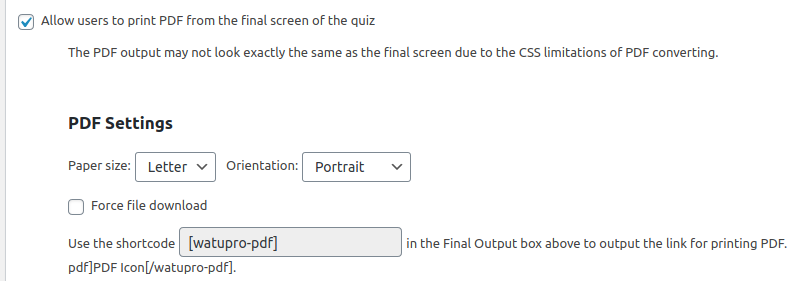
When you have the bridge installed and activated you can allow quiz takers to print the final screen of their quizzes. This can be configured with the following option on the Edit Quiz page -> Quiz Output tab:
Older PDF Bridge
The PDF Bridge version 0.2 uses the html2fpdf library and is much smaller – only 121 KB.
Note that it has some limitations:
- Currently it does not support non-English characters
- It won’t render well certificates with complicated design.
Download OLD PDF-Bridge Here (121 KB)