Category Archives: CalendarScripts

Question Import Formats in WatuPRO

The old import format was often causing confusion so from version 4.2.3 we switched to three much better formats. Don’t worry, the old formats will still be supported for some time through the “Legacy import/export” link.

The new formats supported by WatuPRO are currently these:

Simple Import (CSV):

Download sample file: import-simple. (right-click and choose “Save as”. Note: the file is COMMA delimited.) For versions before 6.4.9.5 use this file: import-simple-old.csv

Do not use this format when importing files exported by the plugin. Use “Advanced WatuPRO” instead.

This is a simple CSV file that has only two columns with question properties:

  • Question contents
  • Question type – radio, checkbox, textarea (all small letters)
  • Is required? (enter 0 for not required and 1 for required). From WatuPRO version 6.4.9.5.
  • Optional answer explanation From WatuPRO version 6.4.9.5.

Then the answers follow in unlimited sets of 3 columns in this order:

  • Answer contents
  • Is correct? (Enter “0” for wrong answer and “1” for correct answer)
  • Points assigned

You can import “fill the gaps” and sorting questions with this import format but you will not be able to import many of the properties. So this import format is best suited for single-answer, multiple-answer, and open-end questions.

Advanced Import (CSV)

Download sample file:  import-advanced (right-click and choose “Save as”. Note: the file is COMMA delimited.)

WatuPRO exports files in this format. Use it always when importing questions exported from other WatuPRO quiz.

This format contains all the question properties in columns and is a subject to change if a new property gets added to the questions. This is also the format that is exported by WatuPRO so at any time you can get the most actual format by simply exporting some of your questions.

All columns must be present in your CSV file but you can leave empty most of them. So feel free to enter only the properties you need.

Aiken format

Download sample file: import-aiken (right-click and choose “Save as”)

We now support the easy and simple Moodle’s Aiken format. Learn more about it here.

Please note Aiken should be followed EXACTLY. Each answer should have a letter like A, B, C, etc and then a point or brace. Example: A. or A). Each answer should be on its own line and cannot take more than one line.

The right answer should on the next line after the last possible answer and should have “ANSWER:” written before it, exactly as you see it: all caps and a colon. Example:

ANSWER: C

Whole question example:

What is the correct answer to this question?
A. Is it this one?
B. Maybe this answer?
C. Possibly this one?
D. Must be this one!
ANSWER: D

Enhancements to Aiken

From version 6.3.2.5 we have built our own enhancements to the Aiken format that allow you to pass question category and answer explanation. Note that they are not part of the official Aiken format and can be used only in WatuPRO.

To add a question category enter a line starting with CATEGORY:, then follows the category name.

To add answer explanation enter a line starting with EXPLANATION:, then follows the answer explanation. It should be all on one line – if your explanation needs multiple lines, use the HTML tags for paragraphs and new lines but do not hit the enter key on your keyboard.

Both “CATEGORY:” and “EXPLANATION:” lines should be entered before the “ANSWER:” line and should be in all caps and with a semicolon – exactly as you see them. Entering the lines is optional – you can skip any or both of them on any or all questions. When importing such questions just select the “Aiken” format – WatuPRO will figure out the enhanced questions on its own.

For a sample import file, check this one:  watupro-aiken (right-click and choose “Save as”)

Moodle XML

From version 6.6.4.5 WatuPRO has a partial support for the Moodle XML format. This format is very complex so we have added only some basic functionality but it’s a good start. We will be implementing it gradually if there is interest.

For a sample Moodle XML click here or right-click and choose “Save as”.

Currently supported:

  • Moodle’s “multichoice” question type which converts into our single-choice and multiple-choice questions/
  • If there are images and the links to them are accessible, they will be automatically copied to your WatuPRO installation.
  • The feedback fields, randomization settings, hidden are not (yet) supported.

Troubleshooting

The import functions are tested literally thousand times on multiple systems. No exaggeration. They work fine.

So before sending us support emails please double and triple check the following:

a) The import format. If you are trying to import advanced file format as “Simple WatuPRO” it will not work correctly. You will get 0 and 1 as answers to questions, and many other misplaced fields. So please even if you are sure your file is “simple” do try the Advanced WatuPRO format. I can’t count the times when people just didn’t try it and asked us why import didn’t work. This wastes a lot of time for both you and us. It takes a minute to try the other format so why not do it?

b) The field delimiter. Most CSV files are comma-delimited (this is where the name comes from). Our demo files listed here are comma-delimited. That’s why comma is selected by default. This does not mean all files are comma delimited. Maybe someone gave you a file that is tab-delimited. Or maybe your Excel is configured to export semicolon delimited files. You can usually figure out the proper delimiter when you try to open the file in Excel or Libre Office calc. But if you can’t: if your import is wrong, just try the other field delimiters.

c) The foreign characters checkbox. It is under the Skip title row checkbox:

Normally it should not be checked. Do not check it unless you have tried the different formats and field delimiters.

d) Your file is in non-Unicode format.

WordPress database is in Unicode, UTF-8 format. Your files should be as well. If you are having problems with partly imported or not imported at all questions, skipped questions, etc, it’s almost guaranteed that your file is non-unicode. Please follow this guide to save it as unicode file. As a final resort you can send your file to us and we will convert it as long as we can figure out the original encoding.

Please note the above 4 trouble points. They will save you the time to wait for answer to your email. Trying the different options takes a minute or two at most.

e) A new column has been added

Sometimes we have to add new columns to the import/export files to add new question properties. In such cases files exported with old versions will not work without modification.

If you are using a file which has been exported with an older WatuPRO version you may run into such an issue. It’s very easy to check if this is the problem: export a new file from some of your quizzes and import it. If it works, then the problem is most likely that the new import format has more columns than your previously exported file.

The easiest solution is to re-export. In the case when you have already worked on the file and want to use it, you need to add empty columns in your file at the place of the new columns in the newly exported file. We always add these columns right before the first answer of the question so it’s relatively easy to compare both files and check how many columns you need to add.

WatuPRO 4.2: User Info Shortcodes, Woocommerce Bridge, Compact Format, and more

The next major release is up, here are the changes and improvements from version 4.1 to version 4.2:

  1. Rounding the points to the closest decimal is now possible on questions. This comes to solve problems when you have for example 3 correct answers on a question and want the total to make 1 point.
  2. Option to restrict number of quiz submissions by IP address. This works both for logged in and not logged in users and will take effect before the user-based restriction.
  3. “Compact format” option is available on most question types. Answers will be aligned horizontally, right from the question, instead of vertically under it.
  4. The free PDF-Bridge plugin can be used to generate PDF certificates instead of DocRaptor. It still has some limitations.
  5. You can now use rich text editor to easily add images and media to the answers of each question.
  6. “Reuse questions from” now allows you to select multiple quizzes at the same time (Intelligence module
  7. You can request a non-logged in user to enter name and email before the quiz starts (or before it’s submitted). Learn how.
  8. User profile shortcodes. More information here.
  9. Different email content to user and admin can be specified by using the {{{split}}} tag.
  10. Calculate grade by % correct answers is moved to the basic WatuPRO version
  11. A free Woocommerce bridge is available which lets you sell access to paid quizzes through Woocommerce (WatuPRO Intelligence module required)
  12. Advanced settings option to reveal the correct answers on wrongly answered “Fill the gaps” fields (Intelligence module)
  13. Advanced settings option to specify the exact order of categories when questions are grouped by category (Intelligence module)
  14. Advanced setting option: require confirmation when the submit button is pressed (to avoid accident submitting of the quiz) (Intelligence module)
  15. Exams that require payment can be purchased with points earned from other exams. This is of course an option that you can enable. You can specify how many points make 1 unit of your currency. (Intelligence module and Play plugin required)
  16. Improved the proficiency calculation by category on Skills/Categories page (Reporting module)
  17. A new pie chart showing the results distribution by grade (Reporting module)
  18. The History tab of the reporting module now shows also the quiz that was taken
  19. Bug fix: “Schedule from/to” finally considers your timezone settings
  20. Fixed bug with incorrectly calculating “max-points” on “Fill the gaps” questions

Eligible customers have received their upgrade. If your upgrades/support package has expired you can renew, upgrade, or downgrade with 60% discount using the promo code sent to your email.

WatuPRO Bridge for WooCommerce

This is a free plugin that allows you to sell access to premium quizzes through Woocommerce. You need also WatuPRO and the Intelligence module.

Download the free bridge here (v 1.9.1, 14 KB)

See also our bridge for EDD.

Once downloaded, install and activate it. Then here is how to use it:

  1. Create some paid quiz(zes)
  2. Add them as WooCommerce products (details below)
  3. Set up redirect after payment, if you wish
  4. Control the behavior of the quiz page if visited directly before payment (details below)

First, you need to create paid quizzes in WatuPRO (with the Intelligence module) just like you would do normally. Then just add the quizzes as products in Woocommerce.

How to add your quizzes as products in WooCommerce

The video below is enough to get you selling quizzes. You may still want to read the full guide to know how to sell certificates, quiz bundles, and so on.

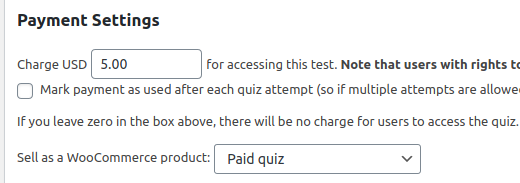
From version 6.4.7.5 of WatuPRO you can skip adding the parameters manually. On Edit Quiz -> Intelligence module tab, once you set a price for the quiz you will see a drop-down selector of all products that are both downloadable and virtual. Selecting a product will automatically create the proper attributes:

In this case you can skip the section below, the section “Redirecting to the quiz”, and the section “Payment Settings in WatuPRO”.

To see this box you need at least one downloadable and virtual product. In the new Woo versions this happens by marking No shipping:

And then adding at least one file for download from the General tab in the Edit Product page in Woo.


Read this the rest of this section only if you don’t use the simpler method described in the yellow box above.

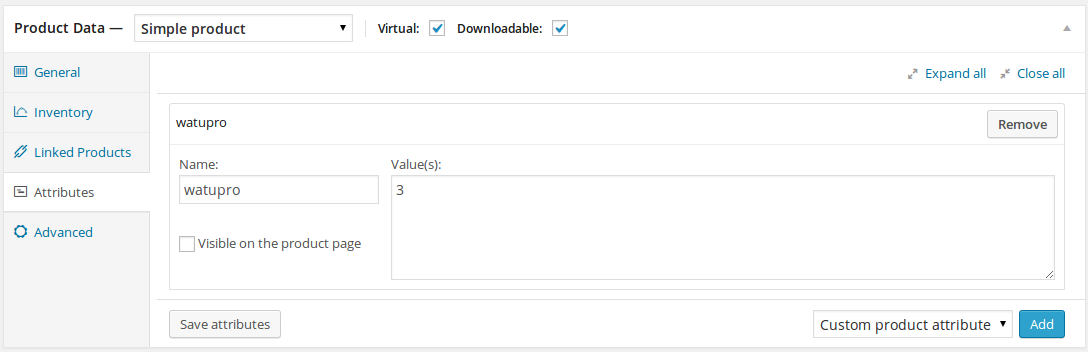
Name them any way you want, give any price you want. Mark them downloadable and virtual products so WooCommerce will automatically mark orders completed on payment (this is fairly important!). The price given in WooCommerce does NOT need to match the price given in WatuPRO. The only important thing is to create a custom attribute with name “watupro” and value containing the ID of the quiz you want to sell:

wwbridge-productNote! Do not create these attributes as custom attribute type from the separate WooCommerce Attributes menu. It needs to be done like on the image above -just enter “watupro” in the small box and the ID in the big box. The drop-down at right should be saying “Custom product attribute”.

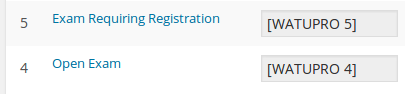
How do you know the quiz ID? Simple, it’s the number in the quiz shortcode:

wwbridge-quiz-id

That’s all, you can start selling access to quizzes. You can add coupons, bundles, and so on -anything that you would do with your WooCommerce products.

When the payment of order is completed, the access to any associate WatuPRO quizzes will get activated. If the user is not logged in and does not exist, an user account will be created on the fly.

The access to the quiz will not be granted until the payment is COMPLETED in WooCommerce. If you see the orders in your WooCommerce admin and their status is different than “completed” this is most likely because you have missed to mark the product “Downloadable” AND “Virtual”.

Redirect to the Quiz

Read this section only if you don’t use the simpler method described in the yellow box above.

From version 0.8 the bridge supports automated redirecting after the order is paid. Just add another custom attribute to the same product. The attribute must have name watupro-redirect and value the URL of the quiz. You can also use any other URL if for some reason you want to redirect elsewhere.

If the user purchase multiple quizzes in one shopping cart they will be redirected to the first purchased product which has the “watupro-redirect” attribute.

Selling Quiz Bundles

From version 0.9 the bridge also allows selling quiz bundles (note: bundles are available for users of the WatuPRO Intelligence module). The process of setting up a bundle is exactly the same as of a quiz, but the attribute name should be watupro-bundle instead of just “watupro”. The IDs of the bundles are visible on the Manage Bundles page.

Payment Settings in WatuPRO

Read this section only if you don’t use the simpler method described in the yellow box above.

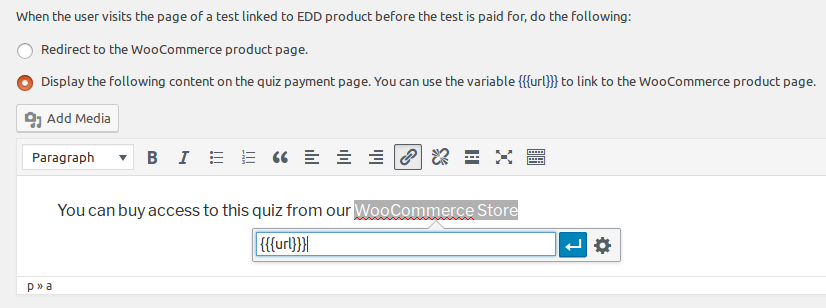
From version 1.2 this bridge allows you to control how the quiz page behaves if visited by the user before the quiz is paid for. You can either redirect automatically to the WooCommerce product page or display a text with link so the user goes there themselves.

To access the settings go to WooCommerce Bridge link under your WatuPRO menu:

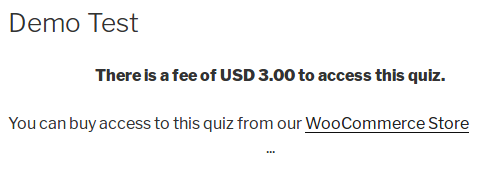
IMPORTANT: If you choose the second option and WooCommerce is the only payment option you use, you’ll need to put at least something in the “Other payment instructions” box in the WatuPRO Settings page. Enter some generic instruction or even just an icon or image, otherwise WatuPRO will display “no payment methods set up” error.

Here’s an example of what the content from the above image and “…” on the “Other payment instructions” box produces:

Note that WatuPRO Coupon codes will not work in WooCommerce and vice-versus.

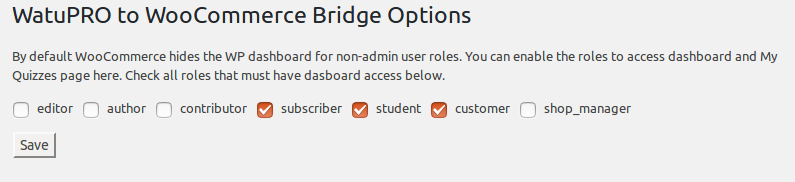
Allow Dashboard Access

Since a while WooCommerce started hiding the WP dashboard from users. This may be OK for some customers who use the shortcodes to put “My Quizzes” etc. pages on the front-end, but not for all. If you still want to allow your students to access the standard WP dashboard, you can do it from the “WooCommerce Bridge” link under the WatuPRO menu:


Charging for Certificates

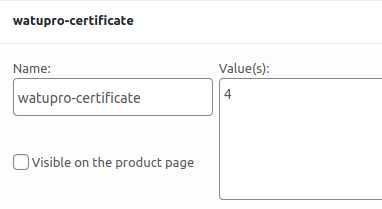
From version 1.3 you can also handle certificate payments through WooCommerce. The principle is very similar but the product attribute you need to use is “watupro-certificate”. For value enter the certificate ID (not the quiz ID):

Do not use the watupro-redirect attribute with certificates. Because certificate links are dynamic, the user will automatically be redirected to view the certificate after payment (unless they have many products in the shopping cart in which case they may be redirected elsewhere or stay on the success page).

When a certificate requires payment and is not yet paid for, and there is associated WooCommerce product, the “view/print certificate” link will automatically redirect the visitor to the WooCommerce product page.

Troubleshooting

In case user does not gain access to the quiz after paying, check the following:

  1. Your WooCommerce product must be marked as Virtual AND Downloadable.
  2. The custom attribute must have name “watupro” (all small letters) and its value must be the ID of the quiz you are selling. Double check you have entered the correct ID.
  3. Check the order status of the WooCommerce order. It must be Completed. Any other order status will not mark the quiz as paid.
  4. Make sure the page with the quiz is not cached by a caching pluigin. A cached page may always show payment buttons instead of dynamically changing its behavior.

Changelog Version 1.0

We have updated the plugin to work with Woocommerce 2.6.11. The older versions of the bridge will not work when “watupro-redirect” is used!

Changelog Version 1.1

The plugin provides “allow dashboard access” option explained above.

Changelog Version 1.3

Added support for paid certificates. Quiz and certificate pages will automatically redirect to the WooCommerce product for payment when such is available.